

Introduction
Our Android team uses Gradle as our build tool of choice. Gradle offers lots of options for tuning its resource consumption, giving engineers an opportunity to optimize performance for running tasks on well-known hardware. In this post, we’ll explore how the team tuned our Gradle setup for Amazon’s m7i.8xlarge EC2 instances.
General concepts
Before discussing Gradle, let’s refresh our memory of two operating system concepts: processes and threads. A process models a program in execution, with its own memory heap. A process can spawn many lightweight threads which share that process’s heap.
Gradle daemon configuration
Gradle affords us many ways to specify how we’d like it to execute tasks. The first of these is gradle.properties. This plaintext file offers a multitude of high-level settings for how Gradle executes tasks. Gradle actually supports multiple gradle.properties files: one at your project’s root, and another at your user root, which takes priority in the event of a conflict. Gradle also accepts command-line arguments, which hold the highest precedence of all.
You are probably familiar with some of these settings. org.gradle.jvmargs configures the parameters passed to the JVM when a Gradle daemon process starts. As such, these options should be familiar to Java-ecosystem developers. For example: -Xmx8g -XX:MaxMetaspaceSize=1g -XX:+HeapDumpOnOutOfMemoryError. Other relevant options here include org.gradle.parallel and org.gradle.caching, both of which should be enabled for their significant performance gains, proportional to how well-modularized your project is.
Single-use daemon or long-running daemon?
As mentioned, Gradle houses its execution in so-called daemon processes. By default, these are long-running background processes that are re-used where possible as new tasks arise. But developers can override this behavior, such that “daemons” are started and torn down as-needed, via org.gradle.daemon. We have decided on single-use daemons for our build machines, because 1.) we want each successive CI build to be as independent as possible 2.) we want to avoid the memory overhead associated with long-running daemons 3.) the benefits of “warm” daemons are less clear as CI builds happen unpredictably – sometimes many hours apart.
Gradle workers
Gradle has its own notion of a “unit of work” which is distinct from OS Processes (and Threads) and also Gradle’s own Task. These Workers can share a heap (ClassLoader, most common for Android tasks) or live in their own JVM (process isolation), depending on the specified Isolation Mode.
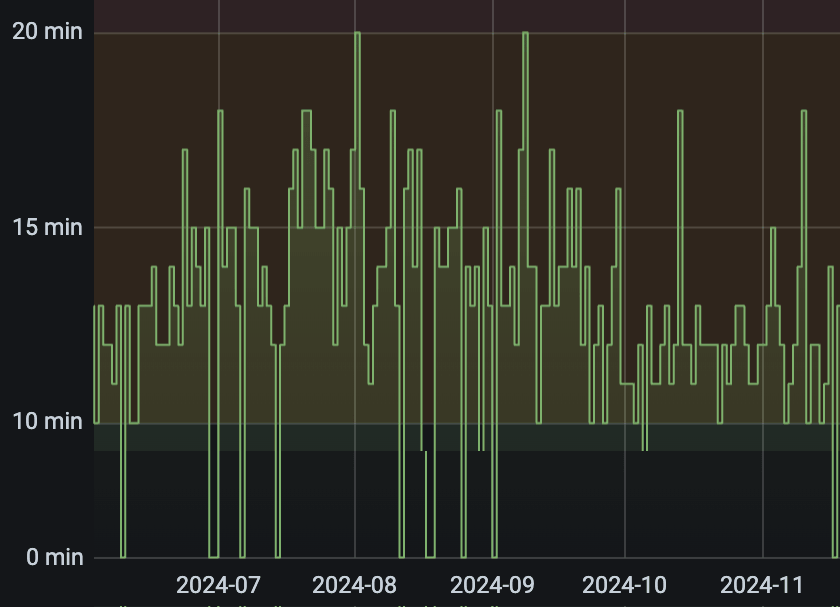
As Android engineers, we are typically executing tasks given to us by the Android Gradle plugin, so we cannot control the isolation mode. However, we can set the maximum number of workers that Gradle can use, via org.gradle.workers.max. By default, Gradle will allow as many workers as there are CPU cores on the host machine. We found, however, that this resulted in memory issues on CI, so we came up with a reduced formula: the greater of A.) 4 or B.) the number of CPU cores divided by 2.
Here is a chart showing the increased performance of 4 Gradle workers versus 8 in our unit test build:
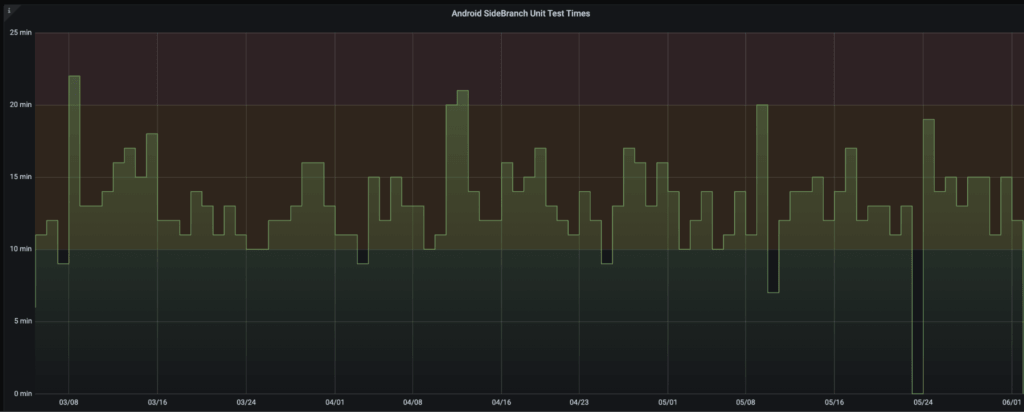
We saw almost no change going from 8 to 16 workers, however. Worker gains are bottlenecked by how many Gradle tasks can run in parallel, which is a function of how well-modularized your project is:
Unit test tasks
So far we’ve discussed ways to configure Gradle operations at the process level. When it comes to unit-test tasks (those extending org.gradle.api.tasks.testing.Test), however, there’s a plethora of additional settings which developers should be aware of.
The first of these is the maxHeapSize property. This controls how much heap each unit-test task can use. This is distinct from the max heap size configured for the Gradle daemon (q.v. the Xmx argument), as Gradle runs tests in a forked JVM process for isolation reasons. A good maxHeapSize value depends on your org.gradle.workers.max and how much memory is available on your hardware. In the worst case Gradle may allocate a Worker for each Task; your Max Heap Size × Max Worker Count should not exceed total memory. Indeed, you should leave enough headroom for the parent daemon that’s being forked (reference your passed jvmargs, e.g., Xmx8g). By the way, although test tasks expose a jvmArgs property of their own (theoretically useful for passing a Xmx value), maxHeapSize is the preferred way to configure memory limits.
The next parameter pertinent to unit-test tasks is maxParallelForks. This allows Gradle to fork multiple JVMs to execute test tasks in parallel. Our team has not experimented with this setting yet. Once we do, I expect we’ll need to reduce maxHeapSize, or perhaps org.gradle.workers.max if that is not possible, to accommodate the additional test processes.
Jenkins executors
The final levers available to us are at the CI level, in our case via AWS and Jenkins. We could scale “horizontally” by introducing more m7i.8xlarge nodes (we use only one class of EC2 instance, which simplifies the task of performance tuning) or scale “vertically” by allowing Jenkins to run multiple Executors on a given node simultaneously. Allowing multiple executors introduces an additional multiplier in your worst case formula: N executors × N Gradle workers × N parallel forks × Max heap size.
Our current configuration
M7i.8xlarge EC2 instances offer 32 CPU cores and 128GB of memory. We have some inflexible parameters based on the size of our project: 1.) we need Xmx10g* in order to run Android Lint 2.) we require maxHeapSize set to 4g. With those in place, we can then change maxParallelForks, org.gradle.workers.max, and/or the number of Executors to increase build throughput.
To confirm our resource tuning, we can SSH onto a node while a job is running, and execute the htop command:

Jenkins also offers its own monitoring from a web UI via various plugins.
In the future, we plan to continue gathering data and tuning in response to bottlenecks. We also want to investigate how to optimize the performance of the Kotlin daemon, which is separate from the Gradle daemon. And finally, we would like to maintain separate configurations for CI and local (laptop) builds to account for hardware differences. We currently have a gradle.properties template defined in our node’s Chef recipe which can be extended to accomplish this.
*Android Lint has historically required lots of memory; we have noticed that it seems to increase with each new version, and that it doesn’t seem to utilize the full amount specified by Xmx for whatever reason.
Conclusion
There are many different types of Gradle tasks in Android projects (Kotlin compilation, unit testing, Android Linting), most of which are built by outside parties, and each having its own strategies for resource utilization (namely, usage of Gradle’s worker APIs). This creates a lot of variables when executing Android work via Gradle – yet, the team benefits by identifying those and deriving a logical arrangement of values for them. We can then methodically maintain those settings as the project under execution changes.
If you enjoy empowering yourself by delving into the details of complex systems, consider joining our engineering team!
Disclosures
Investment management and advisory services are provided by Wealthfront Advisers LLC (“Wealthfront Advisers”), an SEC-registered investment adviser, and brokerage related products are provided by Wealthfront Brokerage LLC (“Wealthfront Brokerage”), a Member of FINRA/SIPC. Financial planning tools are provided by Wealthfront Software LLC (“Wealthfront Software”).
The information contained in this communication is provided for general informational purposes only, and should not be construed as investment or tax advice. Nothing in this communication should be construed as a solicitation, offer, or recommendation, to buy or sell any security. Any links provided to other server sites are offered as a matter of convenience and are not intended to imply that Wealthfront Advisers or its affiliates endorses, sponsors, promotes and/or is affiliated with the owners of or participants in those sites, or endorses any information contained on those sites, unless expressly stated otherwise.
Wealthfront Advisers, Wealthfront Brokerage, and Wealthfront Software are wholly-owned subsidiaries of Wealthfront Corporation.
© 2026 Wealthfront Corporation. All rights reserved.